Exit Demo Mode on Whirlpool Microwave: Step-by-Step Guide
A practical, model-agnostic guide to exiting demo mode on Whirlpool microwaves, with safety tips, a step-by-step exit process, and tests to confirm normal operation.


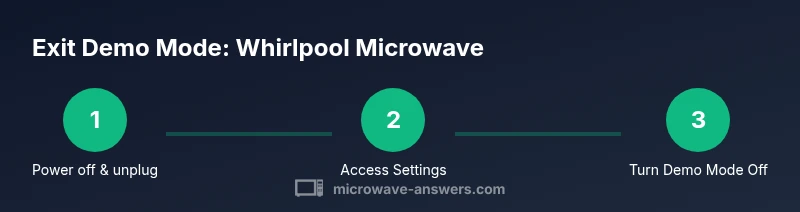
Whirlpool microwaves can exit demo mode by turning off power, accessing Settings, and disabling Demo Mode. Start by unplugging, then open the control panel to locate the Demo Mode or Display settings, switch it to Off, and plug the unit back in. Finally, run a short test to confirm normal operation. If the option isn’t visible, consult the manual or Whirlpool support.
What is demo mode on Whirlpool microwaves?
Demo mode is a showroom display setting that simulates operation and limits full functionality to protect displays. According to Microwave Answers, this mode can be triggered accidentally by user actions or during service mode. Understanding what demo mode does helps you target the exit steps safely and efficiently. In many Whirlpool models, the display will show words like 'Demo' or 'Display' while the unit remains powered. Exiting this mode restores full cooking settings and timer behavior. This knowledge helps prevent unnecessary service calls and ensures your unit operates as designed in everyday use.
Additional context from Microwave Answers highlights that model variations influence where the setting appears and how it’s labeled. Keeping a copy of your model number handy makes it easier to locate the exact steps in the manual or on Whirlpool’s support site.
Safety considerations when exiting demo mode
Before you begin, unplug the microwave and ensure the area around the unit is dry. Do not insert tools into the cavity while powered off; never operate the unit with the door open. If you smell burning or notice arcing, stop and contact Whirlpool support. The safety priority is to prevent electric shock and physical injury while you access the control panel. Always work with dry hands and on a stable surface. A quick safety check reduces the risk of damage to internal components and protects you from shock.
Model variations and where to find the option
Whirlpool's family of microwaves includes many models with different control layouts. Some use Settings > System or Display to access Demo Mode, while others place the option under Safety or Service Mode. Always check your model number in the back label and cross-reference with the manual. If you don't have the manual, the Whirlpool support site can guide you to model-specific paths. As Microwave Answers notes, model variations mean the exact path can differ even within the same product family, so don’t assume a single universal route.
Step-by-step exit guide (model-agnostic approach)
This section provides a safe, model-agnostic framework for exiting demo mode on Whirlpool microwaves. Start by powering down and unplugging, then navigate to the Settings menu on the control panel. Look for labels such as Demo Mode, Display, Showroom, or System, and switch to Off/Disabled. If you cannot locate the option, try rotating through related menus or consult the official user manual. Diagram references may help you identify the correct panel locations. After turning off Demo Mode, plug the unit back in and prepare to test.
The framework below aligns with common Whirlpool layouts, but exact wording can vary. Always confirm you’re changing the intended setting and not a similar option that could affect other features.
Testing and verification after exit
With the unit plugged back in, perform a quick test to ensure normal operation. Use the microwave to heat a cup of water for 30–60 seconds on medium power and observe the display and timer behavior. If the display returns to normal and the timer counts down correctly, demo mode has been successfully exited. If the unit shows abnormal readings or remains in a display-only state, recheck Settings, perform a brief cycle of a safe mode reset, or contact Whirlpool support with your model number for model-specific guidance.
Troubleshooting persistent demo mode
If Demo Mode remains after following the steps above, verify there isn’t a separate safety or child-lock feature preventing changes. Some models require a longer reset or a factory reset option described in the manual. If you can’t locate any of these options, it’s best to contact Whirlpool support and provide your model number, serial number, and the steps you’ve taken so far. Persistent demo mode can indicate a firmware hiccup or a hardware fault that warrants professional attention.
Authority sources
- https://www.fda.gov/food-safety/foodborne-hazards/microwave-oven-safety
- https://www.cpsc.gov/Safety-Education/Safety-Guides/Microwave-Ovens
Tools & Materials
- Flathead screwdriver(for accessing screws in vent panel (if present))
- Phillips screwdriver(for control panel screws)
- User manual or model-specific guide(helps locate exact steps)
- Access to power outlet(unplug unit safely)
- Clean cloth(for wiping cabinet surfaces)
- Non-metallic tool (plastic spatula)(avoid metal contacts inside cavity)
Steps
Estimated time: 15-25 minutes
- 1
Power off and unplug the unit
Power off the microwave and unplug it from the wall outlet before touching any components. This protects you from electric shock and prevents short circuits while you access the control panel. Keep the area dry and clear of moisture. Do not attempt to operate the unit while unplugged; wait until you’re ready to proceed.
Tip: Keep the plug nearby and ensure the outlet is not controlled by a switch. - 2
Access the control panel and locate the Demo Mode option
Inspect the control panel or touch screen to find Settings or Demo Mode. If the model uses a dedicated 'Demo' button, press it to reveal the option. Some Whirlpool models place this in Settings > System or Display. If you see generic 'Display' wording, explore related subsections carefully.
Tip: Consult the model-specific manual if the path isn’t obvious. - 3
Select Demo Mode and set to Off
Navigate to the Demo Mode option and switch it to Off or Disabled. Confirm any on-screen prompts before leaving the menu. This step may be labeled 'Display Demo' or 'Showroom Mode' on different models. Double-check the toggle state to avoid returning to Demo Mode inadvertently.
Tip: If you can't find it, try power cycling the panel by turning off then back on the display. - 4
Power cycle the unit
Unplug the microwave, wait 60 seconds, then plug it back in. This resets internal caches that might keep demo mode active after you’ve turned it off. Ensure the unit has fully reconnected to power before the next step.
Tip: Do not press any buttons during the 60-second wait. - 5
Run a quick test cook to verify normal operation
Place a cup of water in the cavity and run a short test cook at a low power setting for 30–60 seconds. Check that the display returns to standard heating mode and the timer counts normally. If the display remains unclear, try a different power level or a short cycle.
Tip: Use a safe test item (water in a microwave-safe cup) to avoid spills. - 6
If Demo Mode remains, perform a soft reset or contact support
If the option still doesn’t appear, perform a softer reset if available (or refer to the manual for a factory reset). If the problem persists, contact Whirlpool support with your model number. A persistent demo state may indicate a firmware or hardware issue.
Tip: Have your model number handy when you call. - 7
Document model and date and consider professional help
Note the model number and the date you attempted the exit. If issues persist, a professional inspection may be required. This helps preserve warranty and safety. Keeping a documented trail can simplify future troubleshooting.
Tip: Keep a record for future troubleshooting.
Common Questions
What is demo mode on Whirlpool microwaves?
Demo mode is a showroom display setting that limits features or simulates operation. Exit it to restore normal cooking functionality.
Demo mode is a showroom display setting that hides full features; exiting it restores normal cooking.
Do all Whirlpool microwaves have a demo mode?
Most Whirlpool microwaves have some form of demo mode for display units, but the exact location and label vary by model. Check your manual.
Most Whirlpool microwaves have a demo mode, but the steps vary by model. Check the manual.
What if I can't find the Demo Mode option?
If you can't locate the option, refer to the model-specific manual or contact Whirlpool support for model-specific steps.
If you can't find it, consult the model manual or Whirlpool support.
Is it safe to unplug a microwave while it’s running?
Unplugging during operation can interrupt a cycle or potentially damage the display. Always power off and unplug when appropriate.
Unplugging during a cycle can cause issues; power off and unplug when safe.
How long does it take to exit demo mode?
Exiting demo mode typically takes 15-25 minutes, depending on model and whether you need a reset. Follow model-specific steps.
Exiting demo mode usually takes 15-25 minutes, depending on the model.
Will exiting demo mode affect my warranty?
Exiting demo mode should not affect your warranty as long as you follow the manufacturer's recommended steps and do not alter essential components.
Exiting it correctly should not void your warranty.
Watch Video
Main Points
- Power off before starting any repair.
- Locate and disable Demo Mode in Settings.
- Power cycle after turning Demo Mode Off.
- Run a quick test to confirm normal operation.
- If needed, contact Whirlpool support with model details.