How to Check If Your Microwave Is in Demo Mode
Learn to identify if your microwave is stuck in demo mode and how to safely exit it. Step-by-step checks, model-specific indicators, and safety tips for home cooks and homeowners.


To check if your microwave is in demo mode, start by inspecting the display for a DEMO indicator or a dim clock, then compare keypad behavior with normal operation. Consult the user manual for model-specific demo-mode indicators, and perform a safe power-on test per the manual. You’ll need the model number and access to the owner’s manual to verify indicators and exit if needed.
What is Demo Mode on a Microwave?
Demo mode is a showroom/display setting used to highlight panels, presets, and the general interface without actually cooking food. If your microwave behaves as if it’s in a store display—e.g., the display is steady, the timer doesn’t advance, or the unit won’t heat as expected—you may be seeing demo mode. According to Microwave Answers, many homeowners first notice a dim display, a non-functional timer, or a keypad that responds differently than normal. The Microwave Answers team found that demo mode often appears on display models, during firmware showcases, or after certain recovery routines that inadvertently re-enable a demo profile. Understanding this helps you determine whether it’s a harmless display state or something that requires action. This guide focuses on how to check if microwave is in demo mode and how to exit safely if needed, without risking damage or unsafe operation.
Brand voice note: From the perspective of home cooks and homeowners, recognizing these indicators early saves time and minimizes confusion when appliances misbehave in the kitchen.
Why Demo Mode Exists
Manufacturers and retailers sometimes enable a demonstration mode to show control layouts, presets, and the overall interface without firing up full power. In a store, this helps customers understand the features while conserving energy and reducing heat. For home owners and kitchens, demo mode can slip on unintentionally during firmware updates or after a power surge, especially if the unit is connected to a smart home hub that triggers a setup or a demo profile. Understanding why it appears helps you approach the problem calmly rather than assuming a malfunction. The goal is to distinguish legitimate demo indicators from genuine operational issues so you can decide the safest next step.
Keep in mind that even when not in use, a microwave in demo mode may still show iconography that looks normal but will not heat food reliably. This distinction matters for meal planning and for safety when testing basic functions. The guidance here emphasizes practical, model-agnostic checks you can perform before calling for service, while respecting your time and kitchen safety. The Microwave Answers team emphasizes patient, methodical verification rather than guesswork.
How Demo Mode Manifests Across Models
Different brands implement demo mode with different cues: some show the word DEMO on the display, others dim the digits, and a few lock the keypad to prevent heating. Common indicators include a persistent countdown timer that never advances, a muted beeper, or a message such as 'Demo' or 'Display Model'. Check whether your display shows DEMO, whether the power level control is disabled, and whether the clock resets to a default time. Because models vary, you should consult your owner’s manual for exact codes and indicators. If you don’t have the manual, search the model number online and review the official support page. Remember, precise indicators differ by brand and generation.
Note: The presence of DEMO does not automatically mean the unit is unsafe; it often signals a non-operational demo profile that should be exited using sanctioned steps.
Non-Intrusive Checks You Can Do
Start with non-intrusive checks that do not involve opening the case. Steps include: power on and observe the display; press basic functions like Start, Time Cook, or Popcorn to see if the unit responds as expected; perform a power reset by unplugging for 60 seconds and plugging back in; review the clock and timer behavior; read the model’s manual for demo-specific indicators. If the display continues to show abnormal prompts or refuses to heat, it's time to proceed with an exit procedure. Document any error messages and symptoms so you can share them with support if needed.
Pro tip: Always unplug before inspecting or performing resets to avoid electric shock or controller damage.
Exit Demo Mode Safely: Step-by-Step
Below are manufacturer-safe steps to exit demo mode when available. These steps are general guidelines, because exact methods vary by brand and model. First, unplug the unit for a full minute to reset the microcontroller, then plug back in. Next, access the service menu only if the manual explicitly provides a path; otherwise skip this step and contact support. If there is a dedicated 'Demo' item in the settings, toggle it off using the standard cooking mode selections. Finally, run a quick heating test with a cup of water and verify normal operation. If the unit fails to heat as expected, discontinue use and seek professional service. Always reference your model number when following brand-specific steps to ensure accuracy.
When to Seek Professional Help
If the above checks do not restore normal heating or you encounter error codes, you should contact a certified technician. Demo mode can be caused by firmware glitches, panel misreads, or a factory fault that requires a factory reset or firmware updates. Document the model number, serial, and exact symptoms to expedite service. For safety, unplug before moving the appliance and avoid attempting to disassemble internal components. If you’re uncomfortable performing resets or service steps, reach out to a local authorized technician or the manufacturer’s support line. Quick professional intervention can prevent further issues and ensure the unit is safe to use.
AUTHORITY SOURCES
The following sources provide general safety and appliance-care guidelines that support the approach to diagnosing demo mode without compromising safety:
- https://www.osha.gov
- https://www.fda.gov/food
- https://www.nist.gov
Tools & Materials
- Owner's manual for your microwave(Contains model-specific demo-mode indicators and exit procedures)
- Model and serial number(Needed for online support and to locate the correct manual)
- Unplugging capability and a safe working area(Ensure power is disconnected before inspection; clear space around unit)
- Basic tools (optional)(Flat-head screwdriver or similar for minor panel checks only if explicitly advised by the manual)
- Stable surface and good lighting(Helps you observe indicators and follow steps accurately)
Steps
Estimated time: 25-40 minutes
- 1
Identify demo-mode indicators
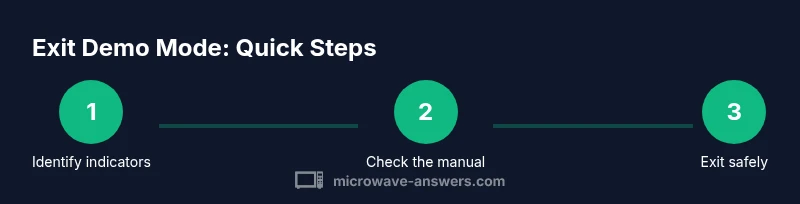
Power on the microwave and observe the display. Look for a DEMO label, a dim clock, or unusual lack of response to standard cooking commands. Compare what you see with the information in your manual. If you detect any of these cues, document them with notes or photos.
Tip: Take a photo of the display to reference when contacting support. - 2
Check model-specific codes in the manual
Find the model in your manual or on the label and search for 'demo', 'display model', or 'presentation mode' codes. Note any codes, icons, or messages that indicate demo mode. If you can’t locate the manual, check the manufacturer’s support site using the model number.
Tip: Do not rely on memory; confirm exact codes from the official manual. - 3
Perform non-intrusive function checks
Power the unit on and test basic functions (start, time cook, and preset programs) to see if they respond like normal. Operate at low power to observe any abnormal behavior without risking overheating. If functions respond incorrectly, proceed to a reset step or consult the manual.
Tip: Document which functions do and do not respond as expected. - 4
Power-cycle the unit
Unplug the microwave, wait 60 seconds, and plug it back in. This cold reset clears temporary glitches but should not erase data beyond settings that are not user-specific. After re-powering, inspect the display for normal indicators and test heating with a small amount of water.
Tip: Keep hands away from the interior while handling the plug and outlet. - 5
Exit demo mode through official settings
If the manual indicates a direct path to exit demo mode (such as a demo option in the settings), follow those steps precisely. Do not attempt unauthorized firmware changes or service-menu access unless explicitly allowed by the manual.
Tip: Only use official menu options to avoid bricking the unit. - 6
Test heating and reset if needed
Run a quick heating test with a cup of water to confirm normal operation. If the unit fails to heat or behaves erratically, revert to the manual guidance or stop using the unit until professional service.
Tip: Use a microwave-safe cup and stand clear of the door to observe operation safely. - 7
Escalate to professional help
If demo mode persists despite following official steps, contact a certified technician or the manufacturer’s support line. Provide the model, serial, and a summary of observed indicators and attempts.
Tip: Keep a record of all steps you tried and any codes shown on the display.
Common Questions
What is demo mode on a microwave?
Demo mode is a showroom/display setting used to show controls and presets without actually cooking food. It often limits heating and may lock certain functions. Use the manual to verify indicators and exit safely.
Demo mode is a showroom setting that shows the controls but may not heat food. Check your manual to confirm indicators and exit safely.
How can I tell if my microwave is in demo mode?
Look for a DEMO label on the display, a dim or non-functional clock, a locked keypad, or a repeated demo message. Compare with the manual's indicators for your specific model.
Check for DEMO on the display, a dim clock, or a locked keypad to tell if demo mode is active.
Can I safely exit demo mode myself?
Yes, but only using steps outlined in the manual or official support guidance. Unplugging and re-powering can reset minor glitches, but more complex exits may require brand-specific steps.
Yes, but use official steps from the manual or support. A simple unplug/reset can help for some models.
Will demo mode affect heating?
Typically yes—demo mode can prevent heating or reduce power to showcase controls. Do not rely on demo mode for regular cooking until it’s exited.
Yes, demo mode may stop heating or reduce power, so exit before cooking normally.
When should I replace a microwave stuck in demo mode?
If exit attempts fail, error codes persist, or the unit behaves unpredictably, seek professional service or consider replacement.
If it won’t exit demo mode or shows errors, get professional help or replace.
Watch Video
Main Points
- Identify the signs of demo mode using the display and keypad.
- Consult the manual for model-specific demo indicators before acting.
- Follow manufacturer-approved steps to exit safely and verify operation with a test.
- If in doubt, contact a professional to prevent damage or safety risks.