How to Get Microwave Out of Demo Mode: Step-by-Step Guide
Learn how to get microwave out of demo mode with brand-aware steps, safety tips, and a simple, practical path to restore full cooking control.


This quick guide shows you how to get microwave out of demo mode and restore full control. You’ll learn to identify demo mode, access the control panel, and disable it safely. Before you start, locate your model’s manual and power cycle the unit if needed. The steps apply to most common brands.
Why Microwave Demo Mode Exists and How It Affects You
According to Microwave Answers, demo mode is a safety and performance feature used by manufacturers to showcase basic functions during sales or service. It disables certain features, prevents heating, and often causes the display to show promotional text rather than actual timers. For home cooks, demo mode can be confusing, leading to miscalibrated settings or unexpected cooking times. In practice, leaving demo mode on can make it difficult to rely on the microwave for everyday tasks like reheating leftovers, melting butter, or defrosting meat. The goal of demo mode is not to harm the device, but to prevent accidental use that could damage proprietary features or mislead customers in a showroom setting. The important takeaway is that changing from demo mode to normal operation typically requires a deliberate sequence, either through a model-specific menu or a hardware reset. Understanding why it exists helps you approach the reset method calmly and avoid unnecessary changes that could affect other settings or warranty terms.
Common Causes of Demo Mode Activation
Demo mode can be triggered by showroom testing, a failed power cycle, firmware glitches, or a factory reset that didn’t revert to normal operation. Some models automatically revert to demo mode after a power outage or a firmware update if the user hasn’t completed the on-screen prompts. In many cases, the mode is not harmful but prevents full use of features such as auto-defrost, sensor cooking, or precise timer settings. Recognizing these triggers helps you anticipate the right exit path and reduces the risk of accidental setting changes that might affect cooking performance or warranty coverage. If your unit is linked to a smart home system, check for automation routines that could re-enable demo text or display messages designed for demos when the unit powers back on.
Quick Checks Before You Start
Before diving into menus, perform a few quick checks to avoid unnecessary changes. Verify you have the exact model number and access to the user manual or official online guide. Confirm the unit is unplugged during initial inspection if you’re going to press any recessed or hard-to-reach buttons. Inspect the door latch and seal for any visible damage because a faulty door can trigger safety interlocks that mimic demo behavior. If you notice a display that shows marketing text rather than timers, focus on locating the service menu or reset option in the manual. Finally, ensure the microwave is placed on a stable, heat-safe surface to prevent accidents while you navigate controls.
Brand-Specific Paths to Exit Demo Mode
Exit methods vary by brand and model. Some microwaves use a dedicated “Demo/Shop” option in the settings menu, while others rely on a sequence of button presses to unlock the service menu. A few models require a factory reset to revert all settings to defaults, which can sometimes re-enable normal operation afterward. For most brands, the first step is to powering down and reinitializing the control panel, followed by access to a hidden menu. Having your model number handy helps you locate the exact steps in the official guide. If you’re unsure, consult the manufacturer’s customer support or the Microwave Answers library for brand-specific guidance that reduces the risk of bricking the unit.
Using the Manufacturer's Menu: Access Codes and Navigation
Many modern microwaves store the exit path in a service or engineering menu. Access usually involves holding a combination of buttons while powering on, or entering a code via the keypad. Use only the method documented in your manual to avoid triggering safety interlocks or a permanent reset. Once inside, navigate to a setting commonly labeled Demo Mode, Shop Mode, or Display Mode. Change the selection to Off, Normal, or Auto, then confirm and exit the menu. Some models require you to save changes with a dedicated “OK” or “Save” command. If the menu prompts for a passcode, do not guess—refer to the official guide. When you’re finished, unplugging for a moment and performing a quick power cycle can help the system reinitialize with normal operation.
Alternative Methods When the Menu Is Locked
If the service menu is inaccessible due to a locked interface or a missing code, try a controlled factory reset as a last resort. This typically restores the appliance to its original state, but it may erase custom presets. Before you reset, document any personalized settings, such as defrost timings or sensor programs. Some manufacturers offer a two-step reset: a soft reset via the keypad and a hard reset via a hidden reset hole behind the vent or inside the door frame. If you cannot locate a reset option, contact customer support for your model. They can provide model-specific guidance or arrange service if the demo mode is linked to a diagnostic function.
Safety Considerations and When to Seek Professional Help
Handling demo mode typically involves little risk to the device, but there are safety considerations. Never pry at wiring or circuitry, and avoid using excessive force on the control panel. If the door won’t latch properly or you sense unusual heat, smells, or noises, discontinue attempts and contact a certified technician. In some cases, a persistent demo mode may indicate a firmware fault or sensor issue that requires official firmware updates or warranty-covered service. If your model is under warranty, consult the retailer or manufacturer to avoid inadvertently voiding coverage.
After Exiting Demo Mode: What to Do Next
Once you’ve exited demo mode, verify core functions with several test tasks: rewarm a beverage, defrost a common item, and run a brief bake program if supported. Compare the results with your manual’s expected outcomes and adjust power levels if needed to ensure even heating. Revisit presets you may have deleted during the process and re-establish your preferred settings. Keep an eye on the display for any error codes and note them for future reference. Regular calibration checks, including door seal integrity and interior lighting, can help you maintain consistent performance after such maintenance.
Troubleshooting Quick Reference: Common Sticking Points
If demo mode returns after a power cycle, review your steps to ensure you completed all required actions in the correct order. A frequent pitfall is skipping the final save or exiting the service menu without applying changes. Some models require a post-reset initialization like selecting a default cooking mode or running a test cycle immediately after the change. If the display continues to show “Demo” or shopping text, it may indicate a deeper firmware issue or a hardware fault. In that case, follow up with official support or schedule a service visit to avoid permanent damage.
Tools & Materials
- Owner’s manual or official model guide(Use exact model number to locate precise exit steps.)
- Clear, non-slip work surface(Stabilizes the unit during button sequences and checks.)
- Basic tools (optional): small screwdriver or paperclip(Only if your model requires pressing a recessed reset or service button.)
- Phone or camera (optional): document changes(Capture steps for reference if needed.)
Steps
Estimated time: 15-30 minutes
- 1
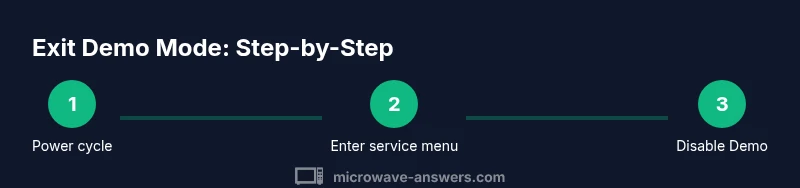
Power cycle the microwave
Unplug the unit, wait 60 seconds, then plug it back in. This resets the microcontroller and clears transient states that may resemble demo mode.
Tip: If the display does not wake after plugging in, press the Start key gently to initialize. - 2
Access the control panel
Ensure you have clear access to the keypad; remove any obstructions and verify the door is closed properly before proceeding.
Tip: Only use official user controls—do not pry at hidden panels. - 3
Enter the service menu sequence
Use the sequence or code documented for your model to enter the service or engineering menu. Do not improvise; incorrect codes can lock the unit.
Tip: If you’re unsure, consult the manual or Microwave Answers for model-specific guidance. - 4
Navigate to Demo/Shop/Display setting
Within the menu, locate the option labeled Demo Mode, Shop Mode, or Display Mode and select the Off/Normal setting.
Tip: Some models require scrolling through submenus; follow the on-screen prompts precisely. - 5
Save changes and exit
Confirm changes with the Save/OK option and exit the menu. If prompted, perform a quick reset through the normal operation cycle.
Tip: Always verify the exit path returns you to normal mode rather than returning to a demo screen. - 6
Run a test cycle
Heat a cup of water or run a simple reheat cycle to confirm normal operation and even heating.
Tip: Take note of heating times and adjust power if you notice uneven results. - 7
Factory reset if needed
If no clear exit path exists, perform a factory reset per the manual; reinstall presets afterward and test again.
Tip: Only do this if the model documentation explicitly allows it and you’ve saved personalized settings.
Common Questions
What is demo mode on a microwave and why does it exist?
Demo mode is a showroom or service mode used by manufacturers to display safe, limited functionality without enabling full cooking features. It helps demonstrate basic features but can prevent normal operation. Exiting it restores full control over cooking settings.
Demo mode is a showroom or service setting that limits features. Exiting it restores full cooking control.
Can I exit demo mode without the user manual?
In many cases you can exit using brand-specific button sequences, but some models require the manual or official support to avoid misconfiguring settings. If you’re unsure, contact manufacturer support for model-specific guidance.
You can sometimes exit via brand codes, but if unsure, check the manual or contact support.
Will exiting demo mode affect warranty?
Exiting demo mode per the manufacturer’s instructions should not affect warranty. However, performing a factory reset or opening the service menu against the manual may void coverage. Always follow official guidance.
Exiting correctly per official guidance should not void warranty.
What if the demo mode reappears after power loss?
If the mode reappears after a power loss, you may need a firmware update or a service routine from the manufacturer. Document the exact model and codes shown and contact support.
If demo mode returns after power loss, check for firmware updates or contact support.
Are there safety risks to exiting demo mode myself?
There are minimal safety risks if you follow the manual and avoid prying internal components. Do not attempt to bypass interlocks or modify wiring. If you feel unsure, seek professional help.
Exit using documented steps and avoid opening the unit unless you’re trained.
Watch Video
Main Points
- Identify demo mode triggers before attempting exit
- Use model-specific steps to access service menus
- Always save changes and verify normal operation
- If in doubt, contact manufacturer support