Mastering Microwave Smart: A Practical How-To Guide
Learn how to safely use microwave smart features with this guide, covering setup, core features, everyday tasks, maintenance, and privacy considerations for home cooks.


A microwave smart is a microwave with built‑in connectivity and sensors that can be controlled via apps, voice assistants, and automatic cooking presets. It offers convenience and energy efficiency, but requires initial setup (Wi‑Fi, app pairing) and mindful safety practices. This guide covers setup, common features, and best-use practices. You’ll learn how to connect, calibrate sensors, select presets, and maintain privacy and security.
What microwave smart means for your kitchen
In everyday cooking, microwave smart describes a modern microwave that connects to your home network, uses sensors to tailor cook times, and offers app or voice control. With microwave smart features, you can start a defrost cycle from your phone, monitor cooking progress remotely, and receive notifications when a dish is ready. This combination of connectivity and intelligent sensing can reduce guesswork, improve results, and help you manage energy use more effectively. However, it also introduces new steps, such as setting up an app, configuring privacy preferences, and keeping firmware up-to-date. The Microwave Answers team emphasizes balancing convenience with safety—understanding what these features do helps you use them responsibly and to their full potential. Throughout this guide, you’ll encounter practical scenarios that illustrate how smart microwaves can fit into a busy home kitchen, from quick reheats to delicate defrosting of proteins.
How smart microwaves work
Smart microwaves rely on three integrated layers: a wireless radio to connect to your home network, a microcontroller with firmware that interprets sensor data and control commands, and a set of sensors that adapt cooking times and power levels. When you press a preset or send a command from the app, the device communicates with the cloud or directly with the phone, adjusts the power, and uses sensors such as humidity, weight, or temperature to fine tune the cycle. Over time, the device learns your preferences, saves favorite presets, and can suggest adjustments for future reheating tasks. Understanding this workflow helps you troubleshoot if a feature seems slow or unresponsive: start with a simple app reconnect, check signal strength, and verify firmware is up to date. In short, microwave smart products blend mechanical microwave action with digital intelligence for more reliable results.
Core features you'll encounter
The typical microwave smart lineup includes: sensor cooking, which uses humidity or weight to decide cook time; app control, allowing you to start, pause, or schedule from your phone; voice integration, enabling hands-free commands; and preset libraries, which offer tailored programs for popcorn, vegetables, beverages, and leftovers. Look for a clear privacy policy, robust security options, and a responsive customer app. Other useful features include child locks, energy‑saving modes, and the ability to set custom presets. Compare models by the quality of their sensors, the reliability of their connectivity, the ease of the app, and the availability of firmware updates. Remember that smart features are only as good as your network and the manufacturer’s commitment to ongoing support.
Safety basics for smart microwaves
The safety considerations for smart microwaves are similar to traditional units but with added digital concerns. Always place the microwave on a stable, heat‑resistant surface and avoid metal containers in sensor modes unless specifically supported. Do not bypass door interlocks or override safety features; never attempt to cook with damaged doors, seals, or hinges. When using presets, verify that the food is evenly arranged to avoid hot spots and burns. Be mindful of privacy settings; disable cloud access if you share a device with visitors. Finally, keep children away from control panels when not supervised, and use the built‑in child lock to prevent accidental operation.
Choosing the right model for your kitchen
Start by matching the physical size to your counter space and door clearance. Consider wattage; higher wattage cooks faster but may be more prone to overheating if misused. Sensor quality matters: look for models with multiple sensing modes, accurate weight sensing, and reliable humidity measurement. App quality is crucial—download the companion app before purchasing to test its responsiveness, ease of use, and notification reliability. Check connectivity requirements and whether the brand offers firmware updates, remote diagnostics, and friendly customer support. Finally, review privacy controls: can you disable cloud storage of cooking data and restrict app access to your account only? A well‑chosen microwave smart can become a central, convenient hub in your kitchen.
Setup: connecting, updating, and customizing
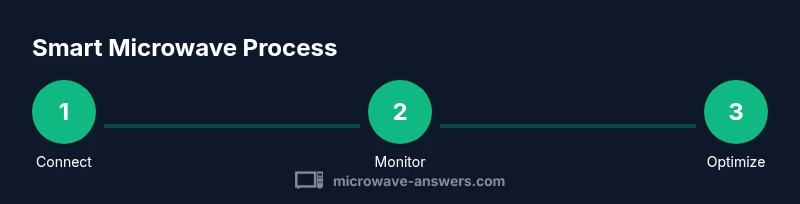
To begin, place the unit in its final position and gather the needed devices. Install the manufacturer's app on your phone, create an account, and follow the on‑screen prompts to pair the microwave with your Wi‑Fi network. Once connected, check for firmware updates and install them. After updating, calibrate any sensors if the option exists, then set up your preferred presets and safety settings. Test a simple task such as reheating and observe the results, adjusting power and time as needed. Finally, review privacy options within the app and disable data sharing if you have concerns about cloud storage. Expect a 15–30 minute initial setup, with additional time for training the family on new controls.
Everyday tasks with smart features
Smart microwaves shine in daily kitchen routines. Use sensor cooking to reheat leftovers without drying edges, defrost by weight for meats, and rely on preset programs for popcorn, vegetables, and soups. You can schedule meals from the app, monitor progress from another room, or pause a cycle if you notice uneven heating. Voice commands can start a defrost or a reheat without touching the panel, which is handy when your hands are full. The key is to experiment with one dish at a time, note results, and save successful presets for future use. Over time, you’ll build a library of personalized programs tailored to your pantry and cooking style.
Maintenance, care, and troubleshooting
Regular care extends the life of your microwave smart. Wipe the interior after heavy use with a non‑abrasive cleaner and avoid porous materials that harbor odors. Inspect the door seal, hinges, and venting for wear; a damaged seal can affect performance and safety. Keep the exterior clean to prevent sensor misreadings and ensure fans stay unobstructed. If a feature stops working, begin with a simple reset, then reconnect to Wi‑Fi and re‑authenticate the app. Check for firmware updates and confirm that the device remains within range of your router. For persistent issues, consult the manufacturer’s support resources or schedule a service visit. Finally, protect your privacy by reviewing app permissions and disabling cloud features you don’t need.
Privacy and security: practical tips
Smart features invite data exchange between your kitchen and cloud services. To protect yourself, enable strong, unique passwords for your app account, two‑factor authentication if offered, and disable unnecessary cloud sharing. Review device permissions in the app and your router’s connected device list. Keep the firmware updated to receive security fixes, and periodically re‑authorize devices if you notice unusual activity. If you have guests, consider guest access restrictions so they can use presets without accessing sensitive settings. Finally, read the privacy policy of the appliance maker to understand what data is collected, stored, and shared.
Tools & Materials
- Smart microwave with Wi‑Fi and app support(Check compatibility: 2.4 GHz networks, supported ecosystems (iOS/Android) and app availability.)
- Smartphone or tablet(Needed to install and configure the companion app.)
- Stable home Wi‑Fi network(Ensure kitchen coverage; consider a mesh extender if signal is weak.)
- User manual or online setup guide(Reference during initial setup and troubleshooting.)
- Non‑slip mat or heat‑safe trivet(Use under hot dishes after cooking.)
Steps
Estimated time: 60-90 minutes
- 1
Verify model compatibility
Check that the microwave supports Wi‑Fi, app control, and sensor cooking. Locate the exact model number in the manual or on the device label, and confirm that your phone OS is supported by the companion app.
Tip: If in doubt, contact customer support before purchasing to avoid gaps in functionality. - 2
Prepare your network
Ensure a stable 2.4 GHz Wi‑Fi network is available in the kitchen area. Disable guest networks for pairing if needed, and have your router password handy during setup.
Tip: A strong signal near the kitchen improves app responsiveness and updates. - 3
Install the app and create an account
Download the manufacturer’s app, create your account, and review the privacy settings before linking the microwave. Grant only necessary permissions required for operation.
Tip: Enable two‑factor authentication if offered for added security. - 4
Power on and enter pairing mode
Turn on the microwave and follow the manufacturer’s instructions to put the device into pairing mode, typically via a button sequence or a dedicated pairing option in the app.
Tip: If pairing fails, restart both the router and the microwave and try again. - 5
Connect to Wi‑Fi
Use the app to connect the microwave to your home network. Enter the Wi‑Fi password and confirm the connection, then wait for a success notification in the app.
Tip: Keep your phone close to the microwave during this step to avoid disconnects. - 6
Update firmware
Check for firmware updates in the app and install them. This may require a brief restart of the microwave and the app to complete the process.
Tip: Regular updates fix bugs and improve security; enable auto‑updates if available. - 7
Calibrate sensors
If your model supports sensor calibration (weight or humidity), follow the app prompts to complete the calibration. Accurate sensors improve cooking results.
Tip: Calibrate with a reference item (e.g., a known weight) to improve reliability. - 8
Create presets and safety settings
Set up your favorite presets (reheat, defrost, popcorn) and enable safety features such as a child lock and quiet mode if offered.
Tip: Label presets clearly (e.g., 'Leftovers‑Medium Heat') for easy reuse.
Common Questions
What exactly is a microwave smart appliance?
A microwave smart appliance connects to your home network and uses sensors to adapt cooking times. It can be controlled via an app or voice assistant and often includes preset programs for common foods.
A microwave smart appliance connects to your network and uses sensors to adjust cooking automatically, controllable by app or voice.
Do I need internet access to use the smart features?
Most smart features rely on Wi‑Fi for app control and updates. Some basic functions may work offline, but remote control and syncing presets typically require internet.
Yes, internet access is usually required for full smart features but basic reheats may still work offline.
How do I connect the microwave to Wi‑Fi?
Download the manufacturer’s app, create an account, and follow the on‑screen prompts to pair the microwave with your Wi‑Fi network. You may need to enter your network password and confirm the connection.
Install the app, sign in, and pair the microwave to your Wi‑Fi via the app prompts.
Are smart microwaves more energy efficient?
Sensor‑driven cooking can reduce waste and prevent overcooking, which saves energy over time. However, idle power usage and connectivity features can add small baseline consumption.
They can save energy through smarter cooking, but idle power use and connectivity add small overhead.
Can smart features replace my traditional microwave tasks?
Smart features enhance convenience, but you can still perform basic microwave tasks without the app. Use presets and manual controls as needed.
They add convenience, but you can still use basic functions without the app.
What privacy concerns should I consider?
Be mindful of data sharing with the manufacturer. Review app permissions, disable cloud storage if unwanted, and use a strong, unique password for the app account.
Privacy settings let you limit data sharing; use strong passwords and review app permissions.
Watch Video
Main Points
- Understand what 'microwave smart' means in kitchen practice
- Know the essential setup steps and app pairing
- Use sensors and presets to improve cooking results
- Prioritize safety features and privacy controls
- Keep firmware up to date for reliability